Android Accessibility Features
Skip to content
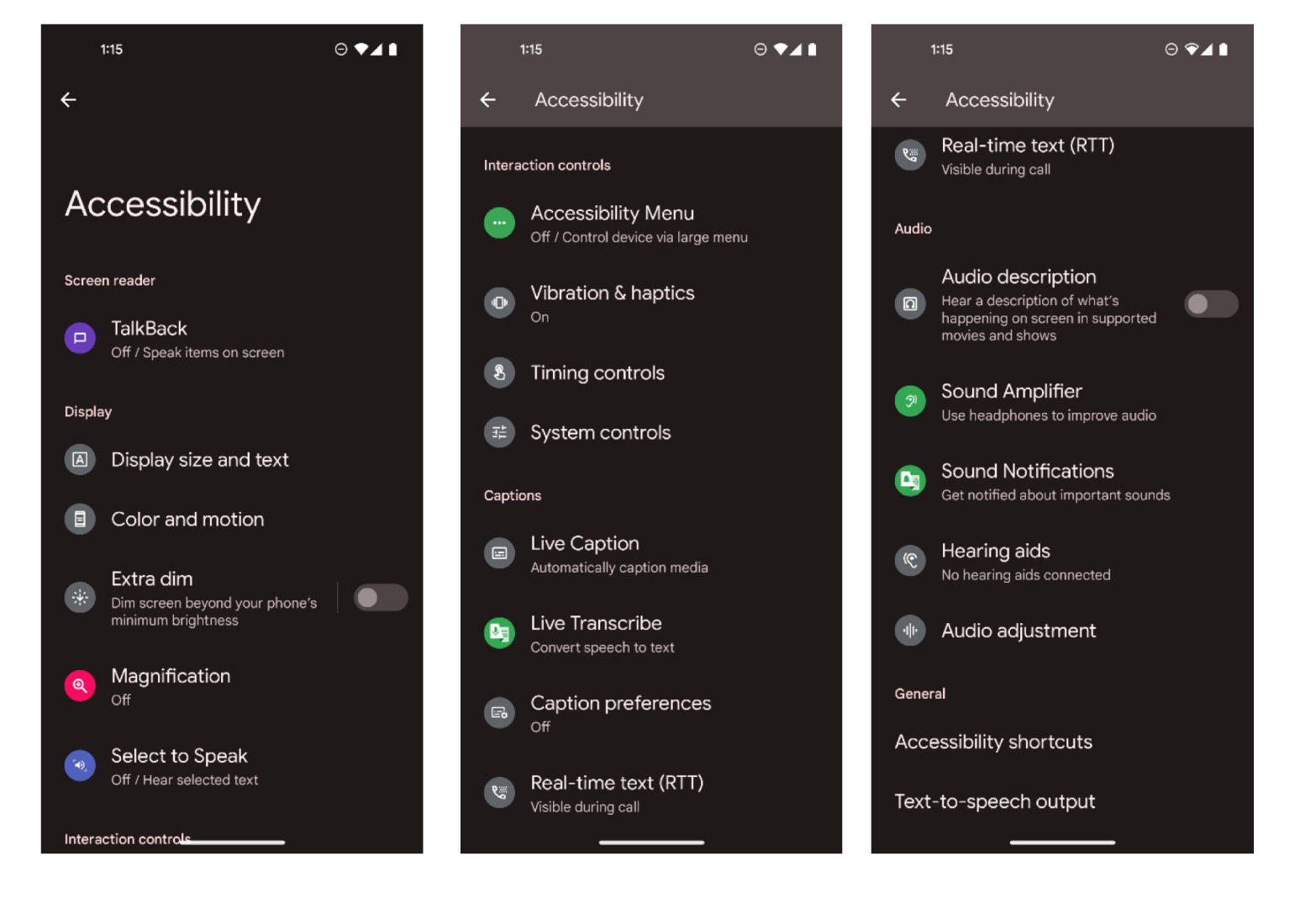
Due to the various available Android devices and brands, wording and location of the following options may vary. However, because many are app-based, they are downloadable for free on the Google Play Store. This allows plenty of users to have full access even if their phones aren't pre-loaded with them. Many of the demonstrations of these features are with Pixel phones so results may vary across all Android devices.
Hearing
- Live Transcribe and Sound Notifications (link)
- Use your phone's microphone to listen and transcribe audio into a text format that's easily viewable on your device.
- There are up to 80 languages supported as of now and you can quickly switch between two languages at a time to keep up with conversations.
- Sound notifications allow your device to notify you if certain sounds, like your name being called, to make sure you don't miss something important.
- These features are downloadable via Google Play Store and integrates into Android Accessibility Settings.
- Live Caption (Learn More)
- Allows audio playing from the device to be transcribed onto your display to easily follow along with the content.
- Only available in English as of now.
- Profanity filter can be enabled to prevent transcription, those words are instead replaced with an asterisk (*). Noises like applause and laughter are also capable of being labeled in the transcription.
- Integrates with volume control to easily enable and disable
- Caption your phone calls.
- Hearing Aids (Learn More)
- Can be paired via Bluetooth settings or in Accessibility:
- Open your device's Settings app . Tap Accessibility Hearing aids Tap Continue Pair new device.
- Your phone will tell you that both left and right are active, in case multiple aids are needed.
- Can be paired via Bluetooth settings or in Accessibility:
- Sound Amplifier (link)
- Your phone's microphone is used to boost certain sounds and limit background noise that can distract the user.
- Allows for clearer conversations.
- Only enabled when using headphones.
- App available via Google Play Store
Vision
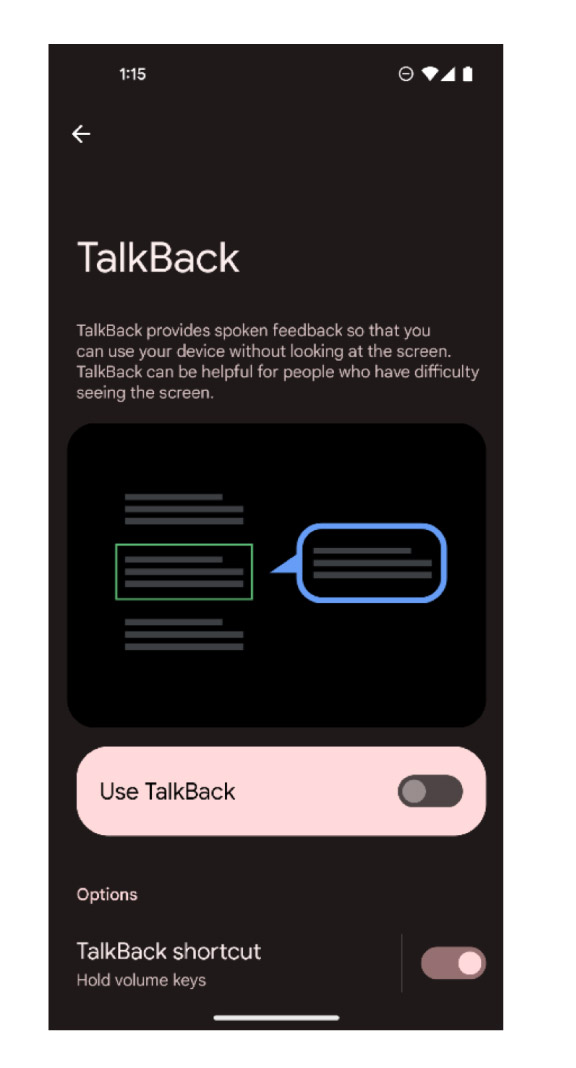
- TalkBack
- Screen reader that allows the user to use gestures on the device and the device will read aloud the screen.
- Can be combined with Braille settings, including adding a Braille keyboard
- Notifications can be customized and read aloud to the user, such as low battery status or new messages.
- Low Vision Tools
- Invert colors, contrast, increase text size, bold text are a few examples of what can be changed to help the display be more accessible to users.
- Zoom and screen magnifier are available to make screen text more visible and easier to read for users.
- Lookout
- Use your phone's camera to identify objects nearby and even do a search for the object in question. This is also a method of live translating or copying text.
- Samsung has Bixby Vision, which is their version of Lookout. Nearby object searching offers Pinterest results of the objects.
- These features are accessed through the pre-installed camera app and typically found scrolling through photo, video, portrait, etc.
- Reading Mode for Android
- Allows changes of the screen you're viewing to customize the layout in a more comfortable and easy to view reading mode.
- Can be used to read aloud the new layout of text to further assist in following along with the text.
- App is available via Google Play Store.
Mobility
- Voice Access (Sound Amplifier)
- Another feature of Sound Amplifier is allowing the user to control their device all through voice.
- Prompts the user with numbered options to tell the device what to select on the screen.
- Action Blocks
- Essentially another term for Shortcuts, these are widgets that are displayed on the device's home screen that will perform whatever action is created.
- Examples include calling somebody without dialing the number or opening the phone app or opening a specific URL on Chrome.
- Can be setup to say something aloud on the speaker of the device, such as “Hi, my name is ____” to assist with speech disabilities.
- App is available via Google Play Store.
- Essentially another term for Shortcuts, these are widgets that are displayed on the device's home screen that will perform whatever action is created.
- Camera Switches (link)
- Uses facial gestures using the front camera or adding external devices to control the phone.
- App is available via Google Play Store.
- Project Activate
- Uses facial gestures for those who have a speech disability or handicap to communicate to others on their device.
- Set-up preset responses with specific facial gestures that can be customized, such as smiling or looking up.
- App will walk the user through setting up the presets in the settings.
- Very simplified and is suited more towards quick actions such as specific phrases. It would take a long time to set up several phrases or actions using this app.
- App available via Google Play Store.
- Look to Speak
- Has preset commands that can be utilized with eye tracking. User would look in the suggested direction for the phrase they wish to use.
- Customizable phrases.
- Great for caregivers when asking basic questions
- App is available via Google Play Store.